
Your smartwatch is your fitness tracker, notification hub, and style statement—but when its clock is wrong, it becomes a daily frustration. Maybe your phone’s dead, you’re traveling, or the companion app is glitching. Whatever the reason, you don’t need an app to fix the time. In this guide, you’ll learn three foolproof methods to manually set your smartwatch’s time, troubleshoot common issues, and keep your device accurate—no smartphone required.
Why Can’t My Smartwatch Set the Time Automatically?
Most smartwatches sync time via Bluetooth or Wi-Fi with your phone. But if your watch is offline, reset, or in a region with poor connectivity, it might display the wrong time. Here’s when manual fixes save the day:
- You’re traveling across time zones.
- Your phone is broken, lost, or disconnected.
- The watch software is glitching.
- You prefer full control over settings.
⚠️ Heads Up: Some watches (e.g., older Fitbit models) require initial app setup. Check your manual before proceeding.
Method 1: Manual Time Adjustment (Works for 90% of Smartwatches)
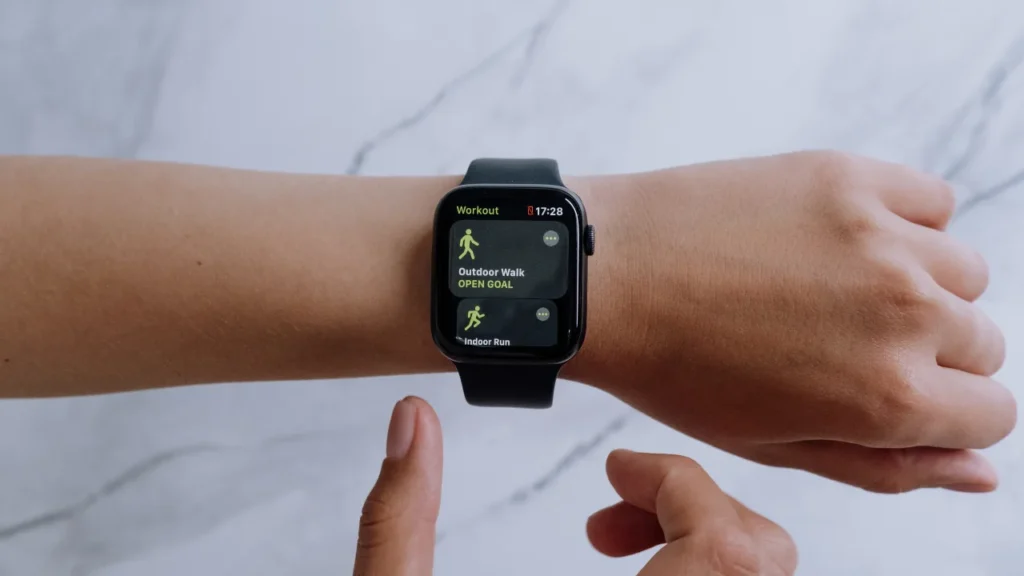
Best For: Apple Watch, Samsung Galaxy Watch, Garmin, Amazfit, Fossil
What You’ll Need: Basic familiarity with your watch’s buttons or touchscreen.
- Open Settings
- Touchscreen: Swipe down or tap the gear icon.
- Button-Based (e.g., Garmin): Press the “Back” or “Up” button to access the menu.
- Example: On an Apple Watch, press the Digital Crown > scroll to “Settings” (gear icon).
- Find “Date & Time”
- Navigate to System > Date & Time (Wear OS) or General > Time (Apple Watch).
- Turn Off Automatic Sync
- Toggle off “Automatic Time” or “Use Network Time.”
- Set Time Manually
- Use +/- buttons, a rotating bezel, or tap to adjust hours and minutes.
- Traveler Tip: Update the time zone here if you’re in a new region.
- Save and Exit
- Tap “OK” or press the crown/button to confirm.
💡 Pro Tip: Can’t find the menu? Search “[Your Watch Model] + manual time setting” on Google for brand-specific steps.
Method 2: Sync Time via GPS (For Outdoor & Fitness Watches)
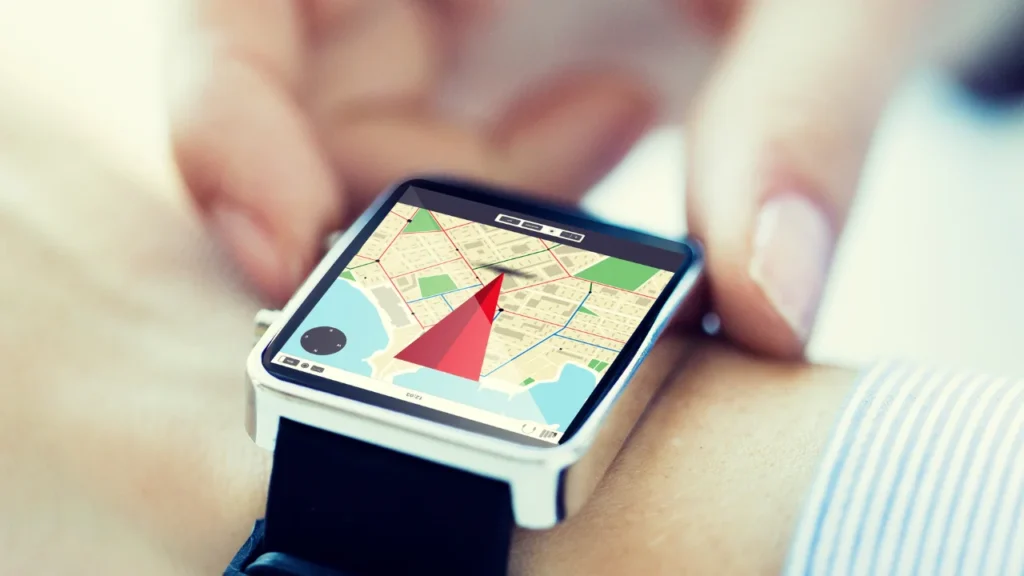
Best For: Garmin, Suunto, Coros, Polar
What You’ll Need: A clear view of the sky.
- Enable GPS
- Go to Settings > Connectivity > GPS and turn it on.
- Start an Outdoor Activity
- Choose “Run,” “Hike,” or “Bike” mode. This forces the watch to ping satellites.
- Wait for Sync
- Once GPS connects (look for a green signal icon), the watch auto-updates time based on your location.
⚠️ Why This Works: GPS satellites broadcast atomic-clock time, which your watch uses to stay accurate.
Method 3: Use Voice Commands (For Google Assistant, Siri, or Bixby)
Best For: Apple Watch, Wear OS (Google), Samsung Galaxy Watch
What You’ll Need: A charged watch and Wi-Fi/cellular if phone isn’t nearby.
- Activate the Voice Assistant
- Apple Watch: Raise your wrist and say, “Hey Siri.”
- Wear OS: Hold the power button or say, “Hey Google.”
- Galaxy Watch: Press and hold the home button for Bixby.
- Give a Clear Command
- Say: “Set time to 2:45 PM,” or “Change time zone to Paris.”
- Confirm the Change
- The assistant will ask, “Should I update the time to 2:45 PM?” Reply “Yes.”
💡 Did You Know? Voice commands also work for setting alarms or timers hands-free!
Troubleshooting: Fixes for Stubborn Smartwatches
Problem 1: Time Resets After Rebooting
- Fix: Disable “Automatic Time” permanently in settings. Some watches (e.g., Huawei GT) revert to auto-sync after restarting.
Problem 2: Wrong Time Zone
- Fix: Manually select your zone under Date & Time > Time Zone > [Your City].
Problem 3: GPS Won’t Connect
- Fix: Charge your watch to 50%+ (low battery disables GPS). Stand near a window or outdoors.
Problem 4: Voice Assistant Ignores You
- Fix: Check mic permissions in settings. Clean the microphone hole with a soft brush.
When All Else Fails: Reset Your Watch
- Factory Reset
- Go to Settings > System > Reset (this erases all data!).
- Post-Reset: Set time manually during the setup process.
- Contact Support
- Example: For Fitbit Versa 4, visit Fitbit’s live chat. Have your serial number ready.
Final Tips to Keep Your Smartwatch Accurate
- Update Firmware: Outdated software causes glitches. Connect to Wi-Fi and check for updates.
- Disable Battery Saver: Power-saving modes often freeze time updates.
- Travel Hack: Manually set your time zone before flights to avoid confusion.
Conclusion
You don’t need a tech guru—or even your phone—to fix your smartwatch’s clock. With these methods, you’ll keep your watch accurate whether you’re hiking in the mountains, jetlagged in a new city, or just tackling daily life. Got a tricky watch model? Share your questions in the comments, and we’ll help you crack the code!
🔗 Loved This Guide? Check out our post on [How to Transfer Apple Cash To Bank Account] for more hacks!