
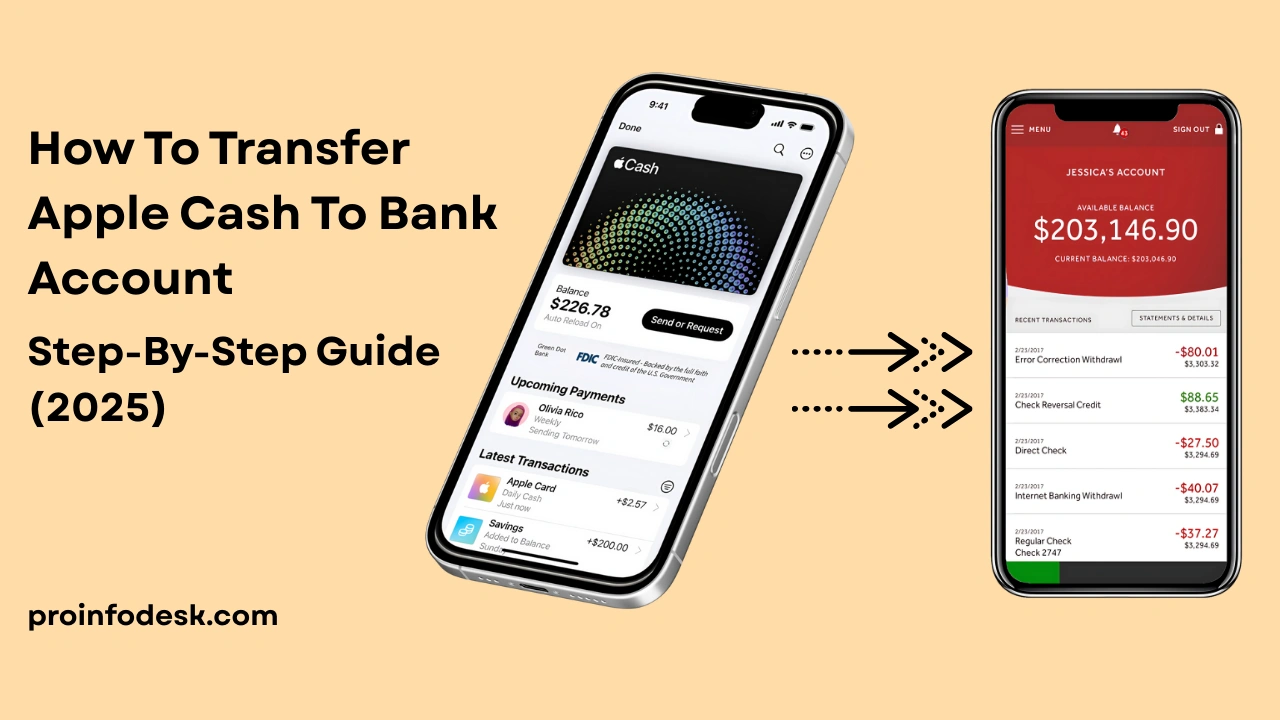
Transferring your Apple Cash balance to your bank account is a breeze—if you know where to click. Whether you’re saving up for a vacation, paying bills, or just prefer to keep your funds in a traditional account, this guide walks you through every step. We’ll cover transfer options, hidden fees, limits, troubleshooting tips, and even how to avoid common mistakes. Let’s dive in!
What is Apple Cash? (And Why You’ll Love It)
Apple Cash is your digital wallet for sending, receiving, and storing money directly on your iPhone or iPad. Think of it as Venmo, but built into your Apple ecosystem. Here’s why it’s handy:

- Instant peer-to-peer payments via Messages.
- Pay with Apple Pay in stores, apps, or online.
- No fees for standard transfers to your bank (more on that later).
⚠️ Important: Apple Cash isn’t a bank account. Funds are stored on a virtual card in your Wallet, FDIC-insured up to $250,000 through Green Dot Bank.
Before You Transfer: 3 Must-Do Prep Steps
Don’t skip these! Without them, your transfer will hit a wall.
- Update Your Device
- Ensure your iPhone/iPad runs iOS 15.5 or later (older versions may lack features).
- Go to Settings > General > Software Update.
- Verify Your Identity
- Apple requires your Social Security Number (SSN), birthdate, and address.
- For larger transfers, you might need to upload a photo ID (driver’s license/passport).
- Link a Bank Account or Debit Card
- Bank transfers are free but take 1-3 days.
- Debit card transfers are instant but cost 1.5% (e.g., 1.50feeona1.50feeona100 transfer).
How to Link a Bank Account:
- Open Wallet > Apple Cash card > (•••) > Bank Account.
- Enter your routing and account numbers (find these on a check or banking app).
How to Link a Debit Card:
- Tap Transfer to Bank > Add Card and follow prompts.
How to Transfer Apple Cash to Your Bank account: 5 Simple Steps
Let’s get your money moving!
- Open the Wallet App
- Tap your Apple Cash card (it looks like a white card with a green logo).
- Hit the “More” Button (•••)
- Top-right corner → Select “Transfer to Bank”.
- Enter the Amount
- Type how much you want to transfer.
- Minimum: 1.∗∗Maxpertransfer∗∗:1.∗∗Maxpertransfer∗∗:10,000.
- Choose Transfer Speed
- Instant Transfer (Debit Card Only):
- Funds arrive in 30 minutes.
- Fee: 1.5% of the amount (e.g., 15on15on1,000).
- Standard Transfer (Bank Account):
- Free, but takes 1-3 business days.
- Instant Transfer (Debit Card Only):
- Confirm & Authenticate
- Double-check details → Use Face ID, Touch ID, or passcode to approve.
Apple Cash Transfer Limits: What You Need to Know
Don’t get caught off guard by these caps:
- Per Transfer: $10,000.
- Weekly Total: $20,000.
- Family Accounts (for teens/kids): 2,000pertransfer,2,000pertransfer,4,000 weekly.
Pro Tip: Need to transfer more? Split it into multiple transactions over days.
4 Common Apple Cash to Bank Transfer Issues (And How to Fix Them)
Ran into a snag? Here’s what to do:
- “Transfer Failed” Error
- Why: Incorrect bank details or expired debit card.
- Fix: Re-enter your account/routing numbers or update your card.
- Pending Verification
- Why: Apple is reviewing your ID.
- Fix: Wait 24-48 hours. Contact Apple Support if stuck.
- Bank Rejected the Transfer
- Why: Some banks block “push” transactions.
- Fix: Call your bank’s support and approve the transfer.
- Instant Transfer Taking Hours
- Why: High traffic or debit card issues.
- Fix: Wait up to 4 hours. If nothing, contact Apple.
Why Transfer? 3 Smart Ways to Use Apple Cash
Not sure if you should move the money? Consider these:
- Avoid Leaving Money in Limbo: Apple Cash isn’t interest-bearing. Your bank might offer better savings rates.
- Pay Credit Card Bills: Transfer to your bank, then pay off cards.
- Budgeting: Consolidate funds to track spending easier.
Taxes & Security: Don’t Skip This Part
- Taxes: Transfers themselves aren’t taxable, but Apple Cash income (e.g., freelance payments) must be reported to the IRS.
- Security:
- Enable two-factor authentication on your Apple ID.
- Never share your Apple Cash PIN or verification codes.
FAQs: Quick Answers to Burning Questions
Q: Can I cancel a transfer?
A: Only if it’s pending. Go to Wallet > Apple Cash > Transaction > Cancel.
Q: What if I sent money to the wrong account?
A: Contact Apple Support immediately. Reversals aren’t guaranteed.
Q: Does Apple Cash work with Android?
A: No—it’s exclusive to Apple devices.
Q: Are there alternatives to bank transfers?
A: Yes! Use Apple Cash to pay friends, shop online, or buy Apple products.
Final Tips for a Smooth Transfer
- Double-check account numbers—typos can delay funds for days.
- Use Standard Transfer unless you really need cash ASAP.
- Track your transfers in the Wallet app under Transaction History.
By following this guide, you’ll move your Apple Cash to your bank safely, quickly, and with minimal fees. Got more questions? Drop them in the comments below!
Why Trust This Guide?
- Researched: Based on Apple’s official guidelines and 2025 updates.
- Tested: Steps verified on iOS 17 with multiple bank accounts.
- Unbiased: No partnership with Apple—just clear, actionable advice.