
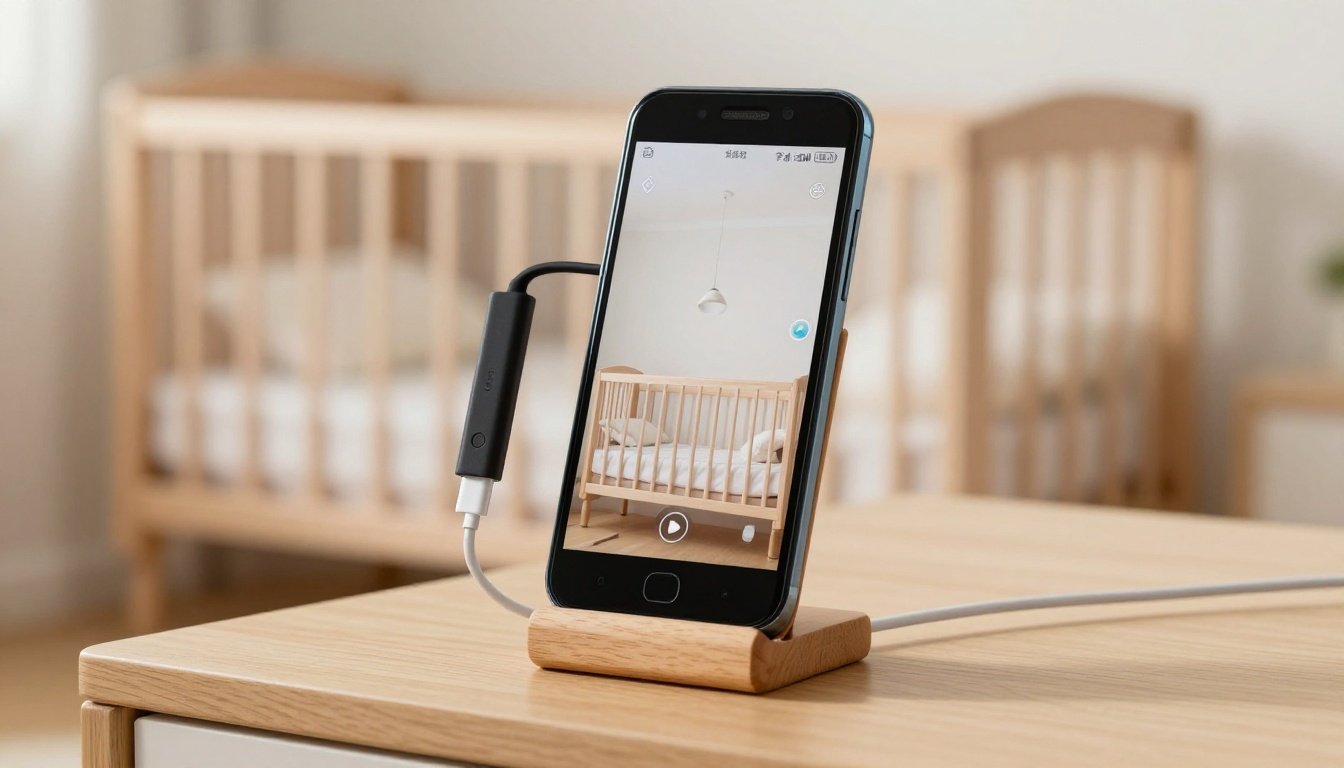
That phone sitting in a drawer could give you a live view of your front door or your baby’s room. With a working camera, Wi-Fi, steady power, and the right app, you can turn an old Android phone into a security camera without buying another device.
Start with a test, not a promise of full-time coverage. Recording, motion alerts, night viewing, and access away from home depend on the handset, app, and subscription plan. A baby monitor also needs safe placement and reliable sound. Here’s how to set up the basics and find out what your spare phone can handle.
What you’ll need before you start
Gather these before mounting anything:
- An old Android phone with a working camera, usable battery, and enough storage for its apps.
- A second phone or other supported device to view the feed.
- Wi-Fi that reaches the spot where you’ll place the camera phone.
- A stable stand or mount and, ideally, a spare charger and cable.
- An app designed to connect a camera device with a viewer.
Clean the camera lens and check the phone’s Wi-Fi, microphone, speaker, and charging port. If the phone shuts down, loses its connection, or struggles to run the app during a short test, it won’t be dependable for longer sessions.
Placement matters as much as the app. Put the phone where it has a clear view and a safe route to a power outlet. A stand that tips when someone opens a door isn’t suitable, even if the video looks sharp while you’re setting it up.
For viewing away from home, you’ll also need internet access at the camera’s location and a supported way to reach it remotely. Your viewing device can use Wi-Fi or mobile data. Some recording and alert features require an account or paid plan, so check the app’s current terms before relying on them.
Choose an app that fits your camera or monitor needs
An app that views cameras isn’t necessarily an app that turns a phone into one. Pick the right type before spending time pairing devices.
Use a phone-to-phone app for the spare handset
AlfredCamera’s setup guide describes a two-device arrangement: set one device as Camera and the other as Viewer, then pair them using its instructions. It offers live viewing, motion alerts, and a Talk feature for two-way audio during a live session. Check its current device requirements before installing it on an especially old phone.
For most people repurposing a phone, a phone-to-phone app is the simplest starting point. tinyCam Monitor has a different job: it’s a viewer for compatible existing IP cameras, DVRs, and similar network video sources. Use it if you already have a supported camera to view, not as the main app for turning your spare Android handset into one.
Check which features are free and which need a plan
AlfredCamera’s plan page lists live streaming, local event recording, and basic motion-only alerts on its free tier, with up to two active cameras. Paid tiers add options such as cloud event storage, longer recordings, and enhanced detection or alerts. Cloud storage isn’t included simply because you can watch a live feed.
AlfredCamera also describes Baby Cry Detection as a beta feature on paid tiers. Its Talk help page explains bilateral audio during a live session, but check the current plan and your devices before treating any audio feature as essential.
Plan terms and prices can change. Review the official plan page and app listing when you install, particularly if you need saved clips or a particular type of notification.
Know when the feed works on Wi-Fi and when it works remotely
A feed that loads in your living room hasn’t yet passed the test for viewing from work. These are separate checks, and cloud recording is a third decision.
Viewing while you’re at home
Local viewing generally means the camera phone and viewing device are on the same home network. However, being on the same Wi-Fi doesn’t prove the app can run without internet. An app may use an online service for sign-in, pairing, notifications, or video delivery.
Once you’ve paired the devices, watch the feed from the rooms where you expect to use it. Walk to the farthest spot from your router and look for dropouts. If your goal is a same-home baby monitor with less reliance on cloud features, confirm what your chosen app requires rather than assuming Wi-Fi alone is enough.
Viewing when you’re away
Away-from-home viewing needs an internet connection at both ends and an app-supported remote method. Depending on the service, that may involve signing into an account and using the app’s connection or relay system. It doesn’t follow automatically from local viewing, and port forwarding isn’t a universal requirement.
To check your setup, turn off Wi-Fi on the viewer phone and try the feed over mobile data. Then test an alert the same way. A successful live remote test doesn’t mean events are being saved to the cloud; recording has its own settings and plan limits.
Test live viewing and saved events separately. One can work while the other is unavailable or turned off.
Turn an old Android phone into a security camera or baby monitor
The first steps are the same for either use. Choose the final location before testing so you can judge the real Wi-Fi signal, camera angle, and cable position.
- Install the chosen app on the old phone and the device you’ll use to watch it. Check that both installations open and update normally.
- Set the old phone to Camera and the other device to Viewer. Sign in or pair them as the app directs, then confirm you can open a live feed.
- Mount the camera phone securely near power. Keep the lens unobstructed and the charging cable away from walkways, pets, and children.
- Set motion alerts, recording, microphone, speaker, or two-way audio options according to your needs and the app’s available features.
- Test the picture, sound, alerts, and any remote viewing you intend to use. Repeat the test after the phone has been running for a while.
Set it up to watch an entryway or room
Aim the camera at the door or area you want to see, rather than covering as much of the room as possible. A fixed, useful angle makes motion alerts easier to assess. Check the view with the door both open and closed, and look for glare from windows or lights.
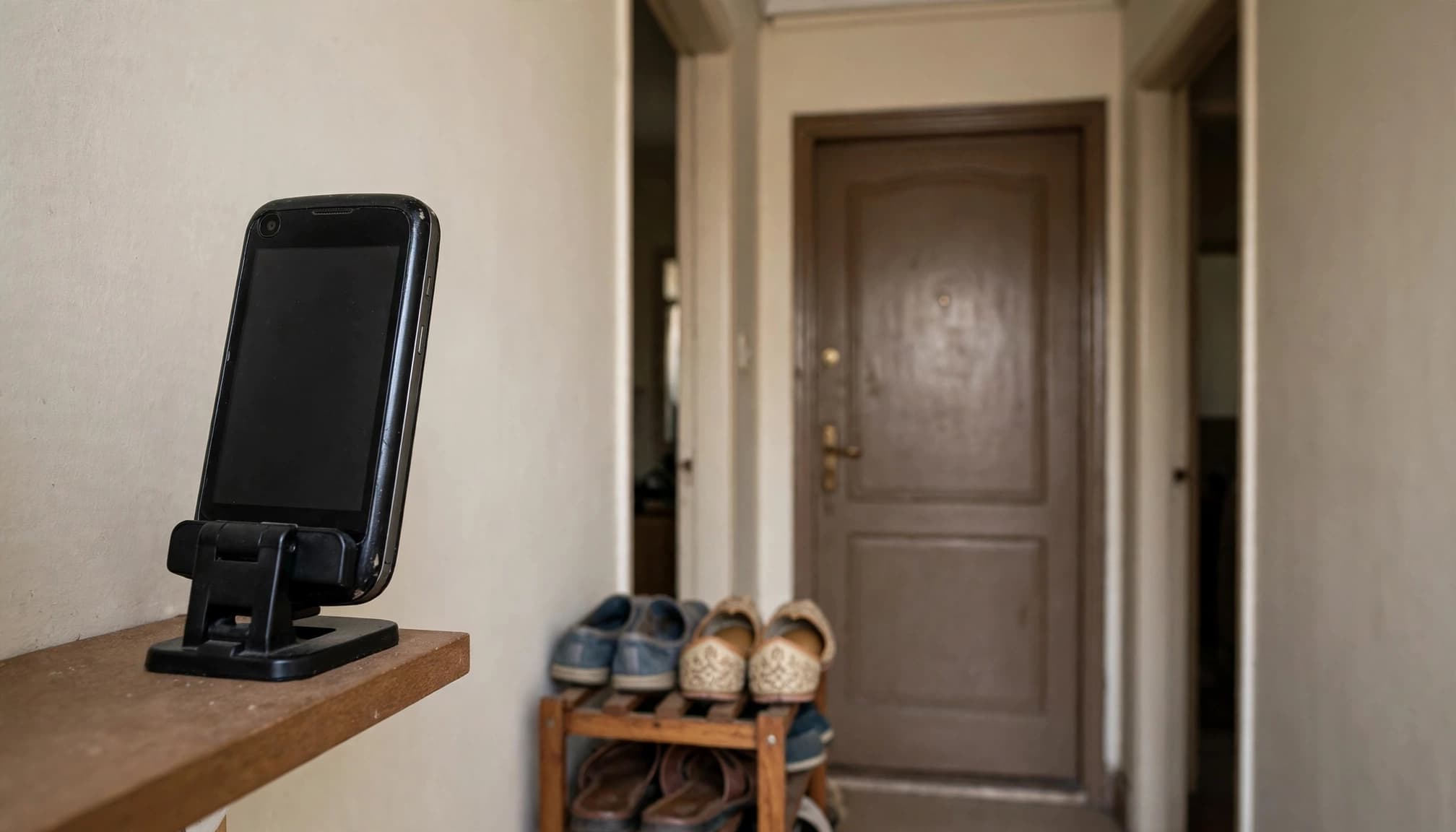
Walk through the monitored area to test motion sensitivity and notification timing. If you need a record of what happened, confirm that an event was actually saved and that you can find it later. Avoid filming private spaces where other people expect privacy, including areas outside your home that the camera doesn’t need to cover.
Set it up as a baby monitor
Secure the phone and its charging cable well out of the baby’s reach. Don’t place either on or inside the crib. Check that the mount can’t fall into the sleeping area, and make sure the phone won’t be knocked loose when you enter the room.
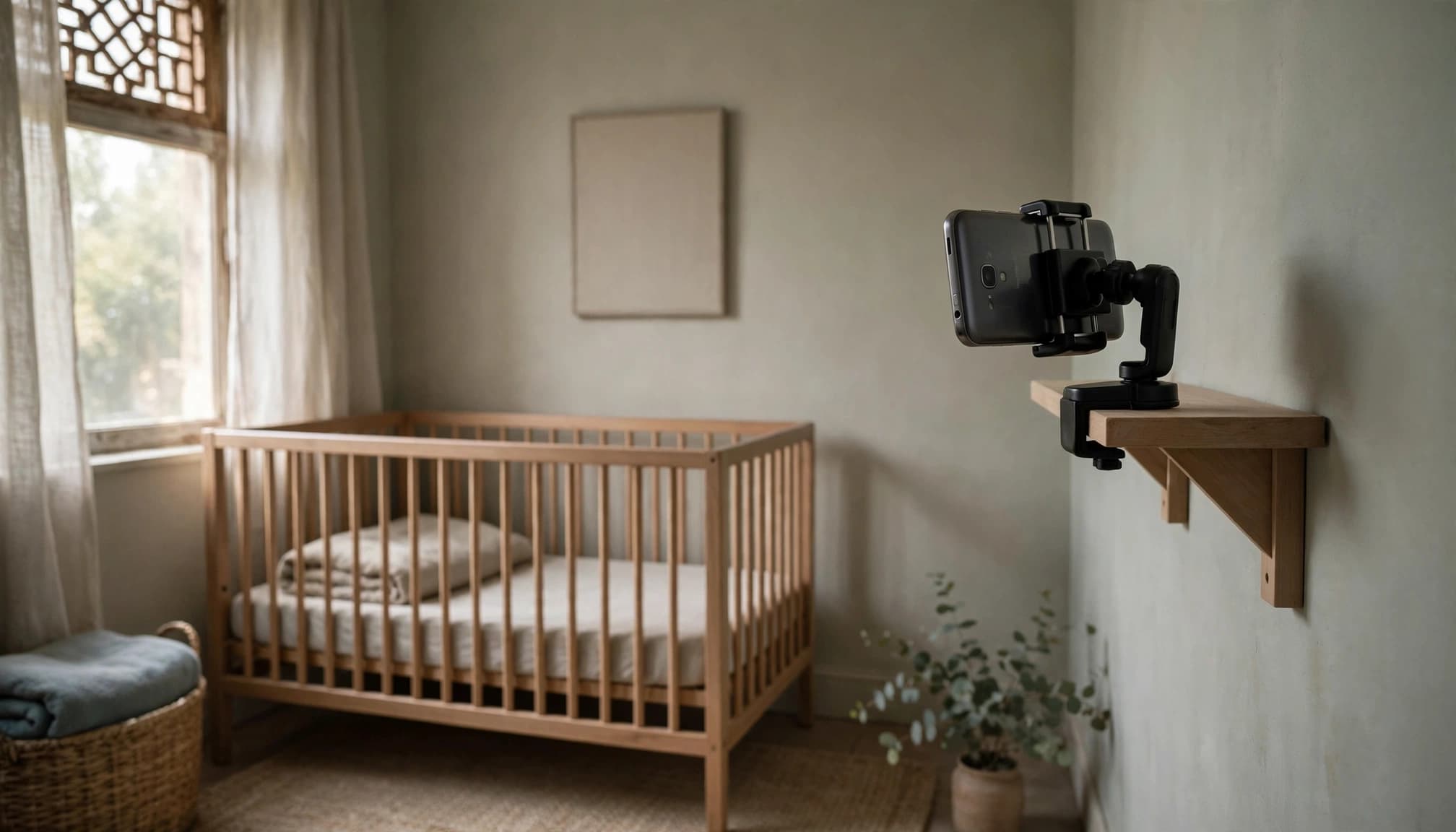
Test the image and sound under the conditions you’ll use, including with the room lights dimmed. An app can’t give a phone infrared night vision simply by offering a low-light setting. If you want two-way audio or cry detection, verify support on your devices and plan, then test the alert at the volume you’d normally use. Keep your usual safe-sleep checks in place; a phone feed can’t replace them.
Compare the cost with buying a camera in Pakistan
Reusing a phone you already own and that meets applicable PTA requirements can keep the upfront cost low. You may only need a mount, a charger, and optional app features. Buying a dedicated camera has a clearer equipment cost, but it also gives you a device built for stationary monitoring.
This comparison shows where the spending may fall:
| Option | Cost to consider | Practical trade-off |
|---|---|---|
| Existing, suitable Android phone | Mount, power, and any paid app features you choose | Reuses what you own, but needs testing for long sessions |
| New Xiaomi Smart Camera C200 | Rs 9,999 in a September 28, 2026 Xiaomi Store Pakistan listing | Purpose-built camera with a separate purchase cost |
| Imported phone bought for this job | Handset and accessories, plus any applicable registration duties or taxes | Potential extra cost if you’ll connect it to a Pakistani mobile network |
The Xiaomi Store Pakistan camera listing is a dated price snapshot, not a guaranteed checkout price. Sellers, stock, and promotions vary. Compare the current local price with the actual cost of your spare-phone setup, especially if the app feature you want needs a subscription.
PTA’s DIRBS guidance addresses registration for devices connecting to Pakistan’s mobile network. If you plan to buy or use an imported handset with a local SIM, check its status and the current FBR mobile-device regularization guidance before counting on a saving. Don’t assume a tax amount, or buy another phone solely for this project without doing the full comparison.
Keep the phone cool, powered, and private
A spare phone can run a useful feed, but continuous operation puts different demands on it than occasional calls or messages. Give the hardware and your account some attention after the initial setup.
Check charging, heat, and reliability
Use a sound charger and cable, and place the phone where air can circulate. Keep it out of direct sun and away from bedding or other material that could cover it. Long charging sessions can contribute to battery wear; if the phone becomes unusually hot, swells, or stops charging reliably, stop using it as a camera.
Leave the setup running for a realistic stretch before depending on it. Check whether the phone remains responsive, the app stays connected, and notifications arrive after the screen has been off. Review Android battery-saving settings if they interrupt the app, and make changes only if the phone can continue running safely.
Picture quality depends on the camera, light, connection, and app settings. Storage use also varies with recording behavior and video quality. Check available space and saved events instead of assuming the phone will keep a fixed number of hours of footage.
Review access and saved footage
Use a strong, unique password for any camera account and enable additional sign-in protection if the service offers it. Keep the app and phone updated where possible. An unsupported phone that no longer receives security updates deserves extra caution, especially if its camera faces a private room.
Review microphone and camera permissions, notification settings, and who can view the feed. If you enable cloud recording, check what gets uploaded, how long clips remain available, and how to delete them. Also confirm where locally recorded events appear, since “recorded” is only useful when you can retrieve the footage you need.
Conclusion
That drawer phone can be a low-cost monitoring option if it holds a connection, stays cool, and gives you the alerts or sound you need. A dedicated camera may be easier for continuous use or features your handset can’t provide.
Before relying on either setup, test it in its final position. The feed you can see, hear, and check when you’re away is the one that matters.